Gemini Notebook PDF to Podcast is a simple way to turn documents into engaging AI-generated audio conversations using Google NotebookLM.
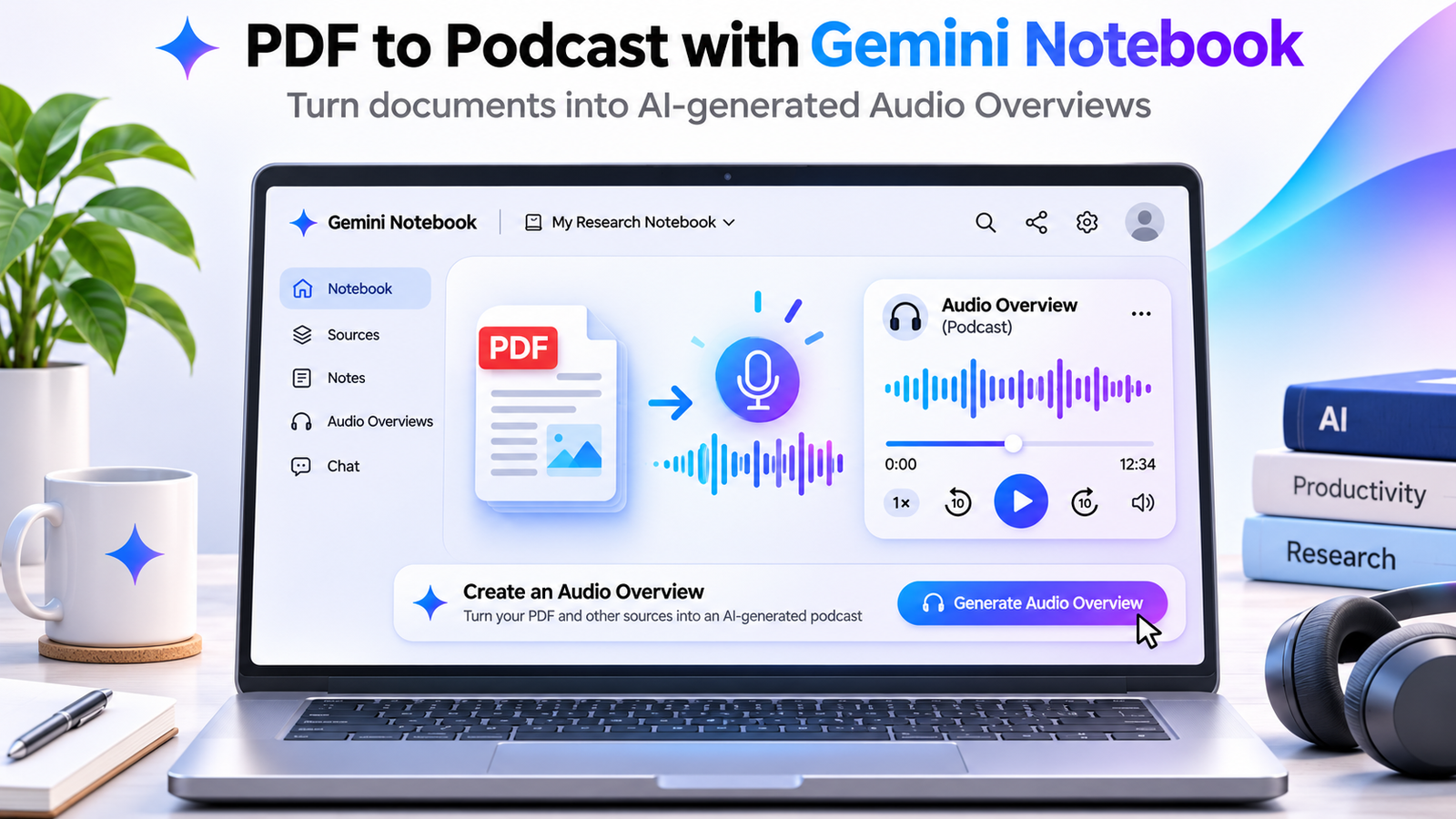
AI-generated illustration showing how Gemini Notebook transforms PDF documents into podcast-style Audio Overviews.
Quick Summary: Have a long PDF? You can use Gemini Notebook to create an AI-generated Audio Overview based on a document you're authorised to use. This guide explains how to add a PDF, customise an overview, and listen to, download, or share the audio where available.
Reading a long PDF can take time, whether you're studying for an exam, reviewing research, or trying to understand a detailed report. This Gemini Notebook PDF to Podcast guide shows you how to turn documents into AI-generated audio discussions that explain key ideas and connect topics from your sources.
This guide covers how to add a PDF, create and customise an Audio Overview, and use the feature responsibly.
What Is Gemini Notebook?
Google’s help pages refer to the product as Gemini Notebook, formerly known as NotebookLM. It’s Google’s AI-powered research tool for organising and exploring information from sources you add to a notebook.
Depending on the file type and current feature availability, you can add sources such as:
• PDF documents
• Google Docs and Slides
• Websites
• Microsoft Word documents
• Text, Markdown, and CSV files
• Supported YouTube videos
• Audio files
• Pasted text
Gemini Notebook can answer questions based on your sources and generate learning materials such as study guides, briefing documents, and Audio Overviews.
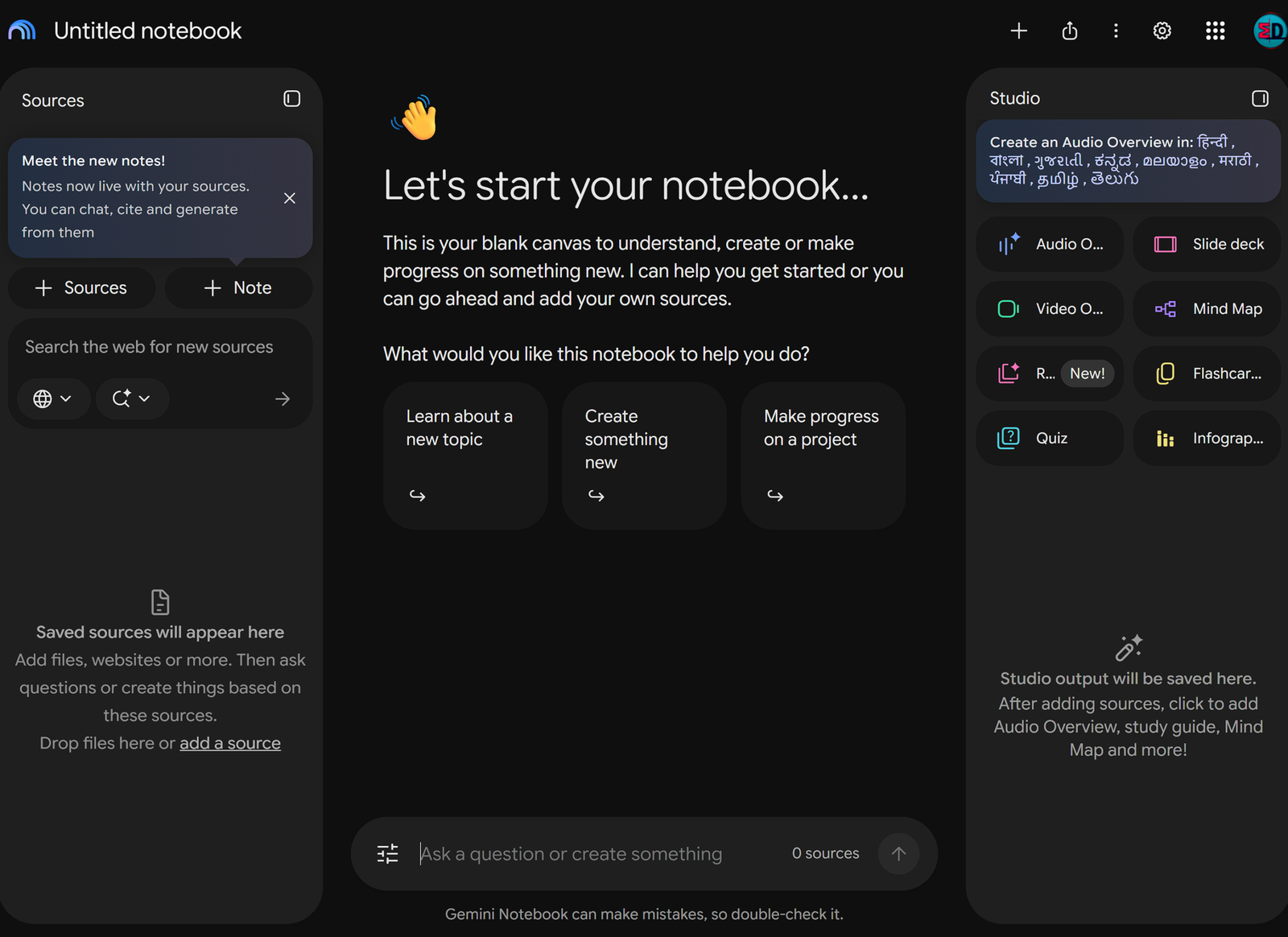
Google NotebookLM interface showing the Sources, Chat, and Studio panels.
What Is an Audio Overview?
An Audio Overview is AI-generated audio based on sources in your notebook. Depending on the format you choose, it may be a discussion between two AI hosts or a shorter, single-speaker summary. It summarises and discusses topics; it does not read your document word for word.
Editorial note: An Audio Overview is AI-generated. It is not a professionally produced human podcast or a word-for-word narration of your PDF. Google notes that generated audio may contain inaccuracies or glitches, so check important details against the original source.
How to Use Gemini Notebook PDF to Podcast: Step-by-Step Guide
Step 1: Open Gemini Notebook
Open Gemini Notebook in a web browser, sign in with your Google account, and create a notebook. Give it a clear name, such as “Biology Exam Notes” or “Marketing Research Report.”
Step 2: Upload Your PDF
Select Add source (the exact label may vary) and upload a PDF you’re authorised to use.
Google’s current source limits include up to 500,000 words per source or 200 MB per local upload. These limits are separate; Google does not specify a page-count limit. Some files, such as copy-protected PDFs, may not import.
Text-searchable PDFs are generally easier to work with than scanned, image-only documents. If the text in a scan is not recognised correctly, use OCR to create a searchable version, review the converted text for errors, and then add it to your notebook.
Best practices:
• Use a clear, relevant document and avoid adding unrelated sources.
• Make sure you have the necessary rights to use the content.
• Ask a few questions about the PDF in the notebook chat before generating audio. This helps you confirm the source text imported correctly.
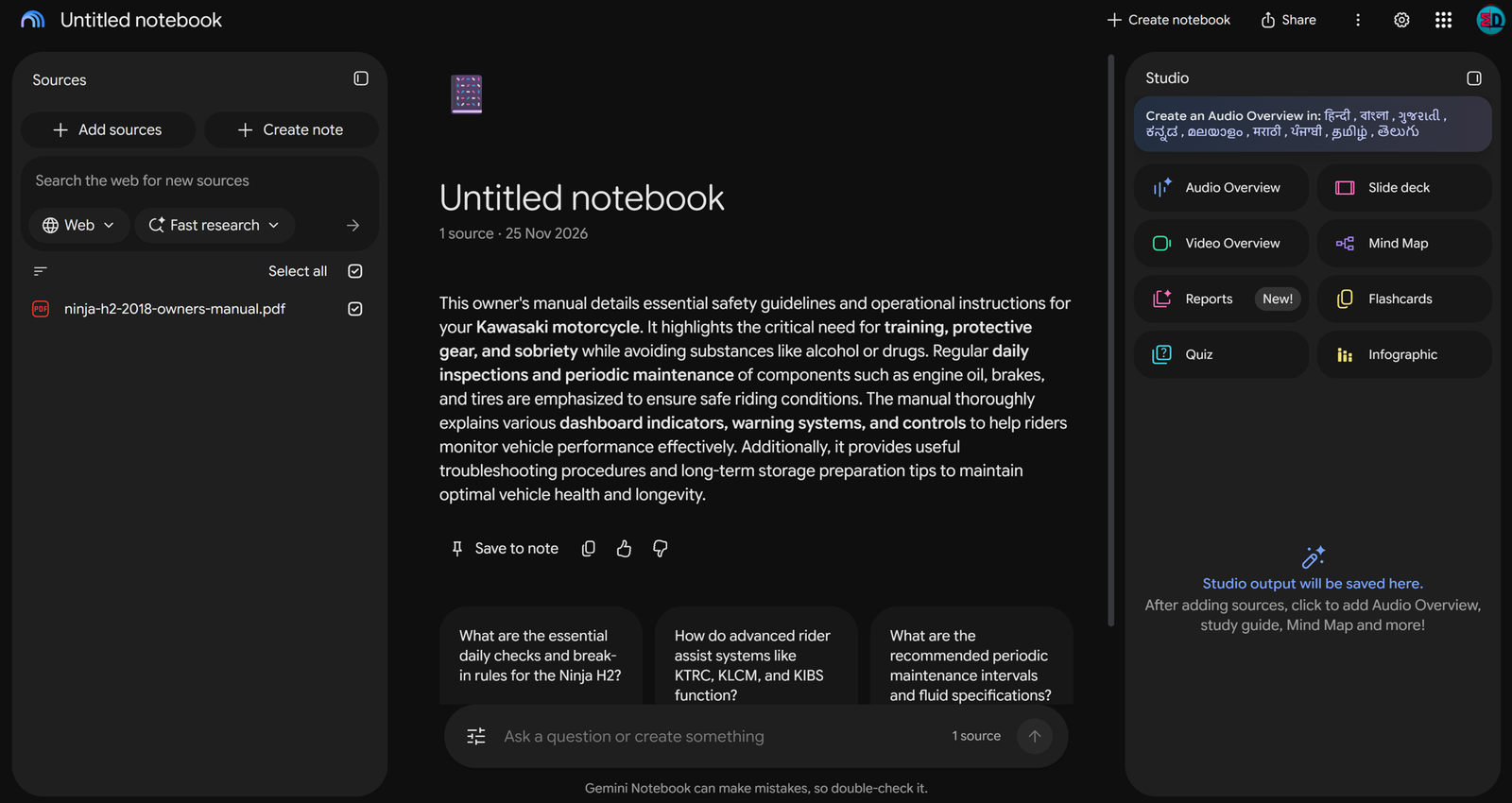
PDF document successfully uploaded to Google NotebookLM, ready for Audio Overview generation.
Step 3: Open the Studio Panel
After adding your PDF, open Studio and select Audio Overview. The interface may change as Google updates the product.
Step 4: Choose an Audio Format
Google lists four Audio Overview formats. Their availability may vary by account or interface.
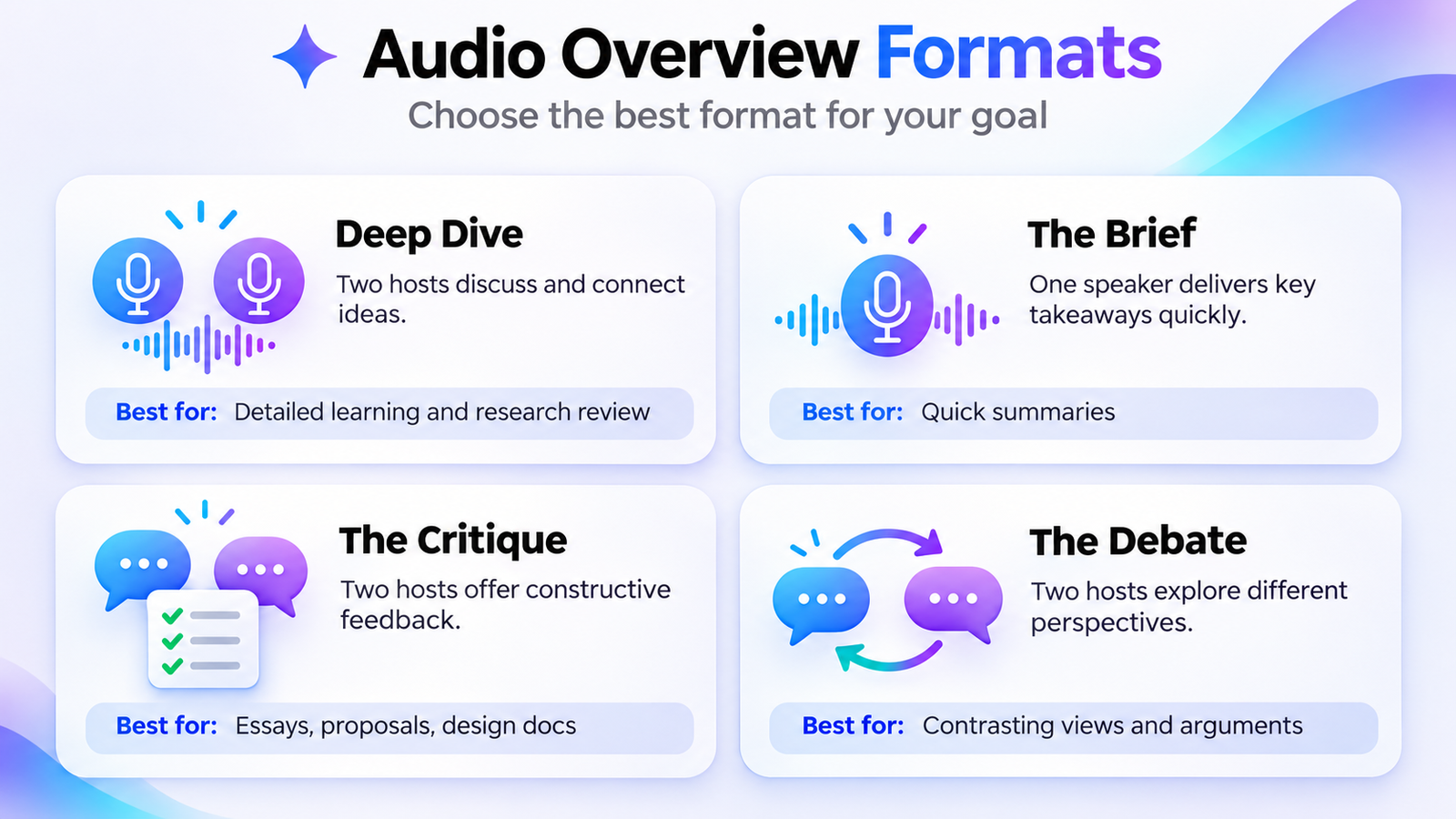
An AI-generated illustration comparing the four NotebookLM Audio Overview formats: Deep Dive, Brief, Critique, and Debate.
Step 5: Customise the Audio and Select Sources
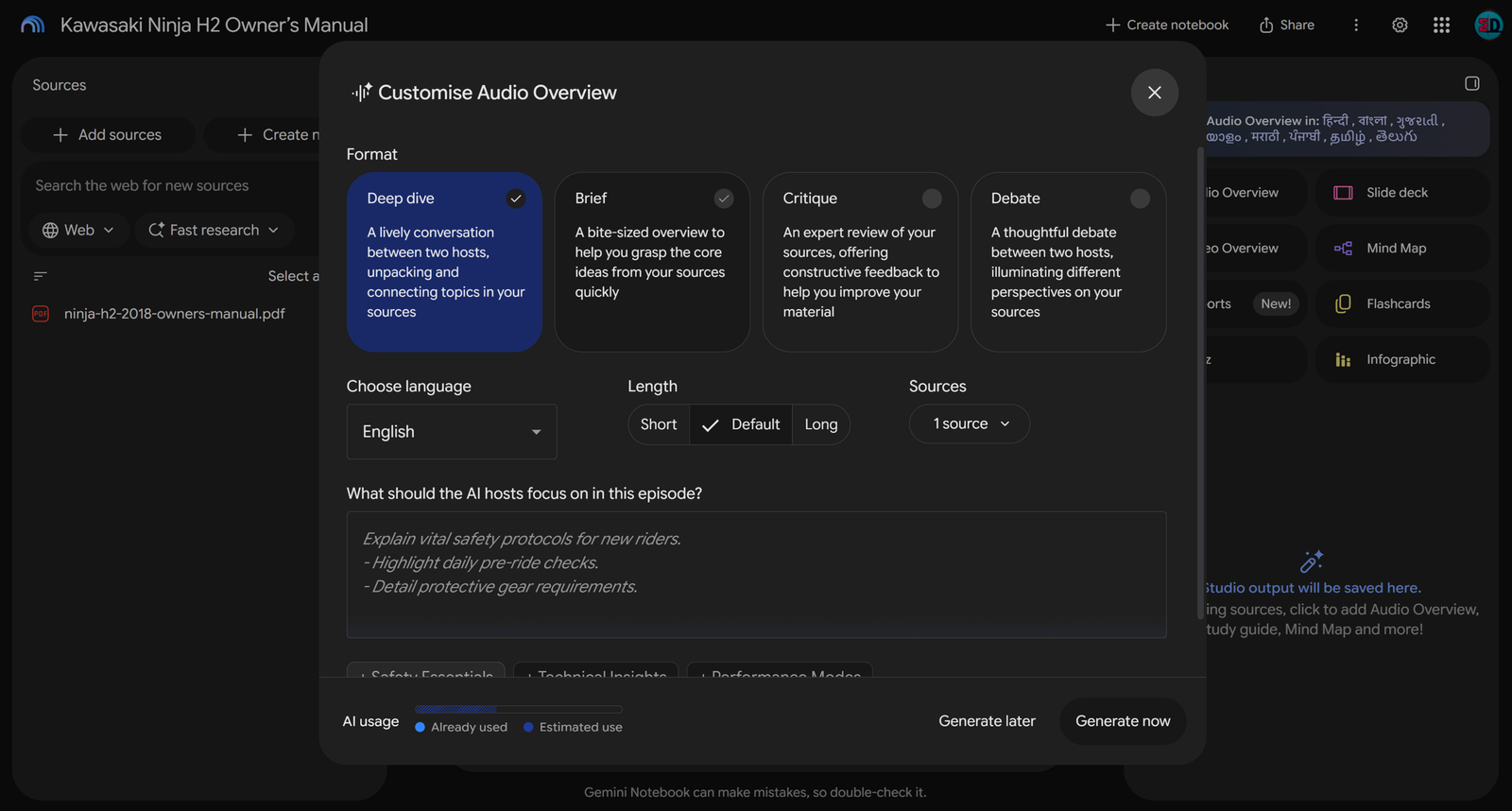
Customize your NotebookLM Audio Overview by selecting the format, language, length, and custom instructions before generating the podcast.
Step 6: Generate and Listen
Select Generate to create the Audio Overview. Generation may take a few minutes. You can continue working in the notebook while it runs.
When the audio is ready, open the built-in player and listen. You can enable Interactive Mode when generating an eligible Audio Overview. It is currently available in English; while listening, select Join to ask the AI hosts follow-up questions. People listening through a shared Audio Overview link cannot join your interactive conversation.
Step 7: Download or Share the Audio
On a computer: Open the generated Audio Overview and select Download to save the audio. Google confirms that a download option is available, but its help page doesn't specify the downloaded file format.
In the mobile app: Downloaded Audio Overviews are available for offline listening in the app’s Downloaded section. This is in-app playback and does not necessarily save a standalone audio file to your device.
Sharing: You can share an Audio Overview using the audio player. Depending on the sharing method and settings, recipients may need access to the notebook and its contents. People who open a shared Audio Overview link can listen to it, but they can't use Interactive Mode through that link. Some Workspace accounts don't allow public sharing. Deleting a shared overview deactivates its link.
Be careful when sharing notebooks that contain sensitive information. Google notes that Chat View does not prevent viewers from accessing sources or artefacts. Audio artefacts from publicly shared notebooks may be accessible to anyone with the artefact link.
Practical Example: Environmental Science PDF
Upload: Add a PDF about climate change and renewable energy to a new Gemini Notebook.
Review: Ask the chat, “What are the three main takeaways from this document?” to check whether the source was parsed correctly.
Open Studio: Go to Studio and choose Audio Overview > Deep Dive.
Add a prompt: Enter: “Create a beginner-friendly audio explanation of greenhouse gases and renewable energy terms, using everyday examples.”
Generate and listen: Select Generate, then listen while reviewing your notes. You can download the file to your desktop for your commute.
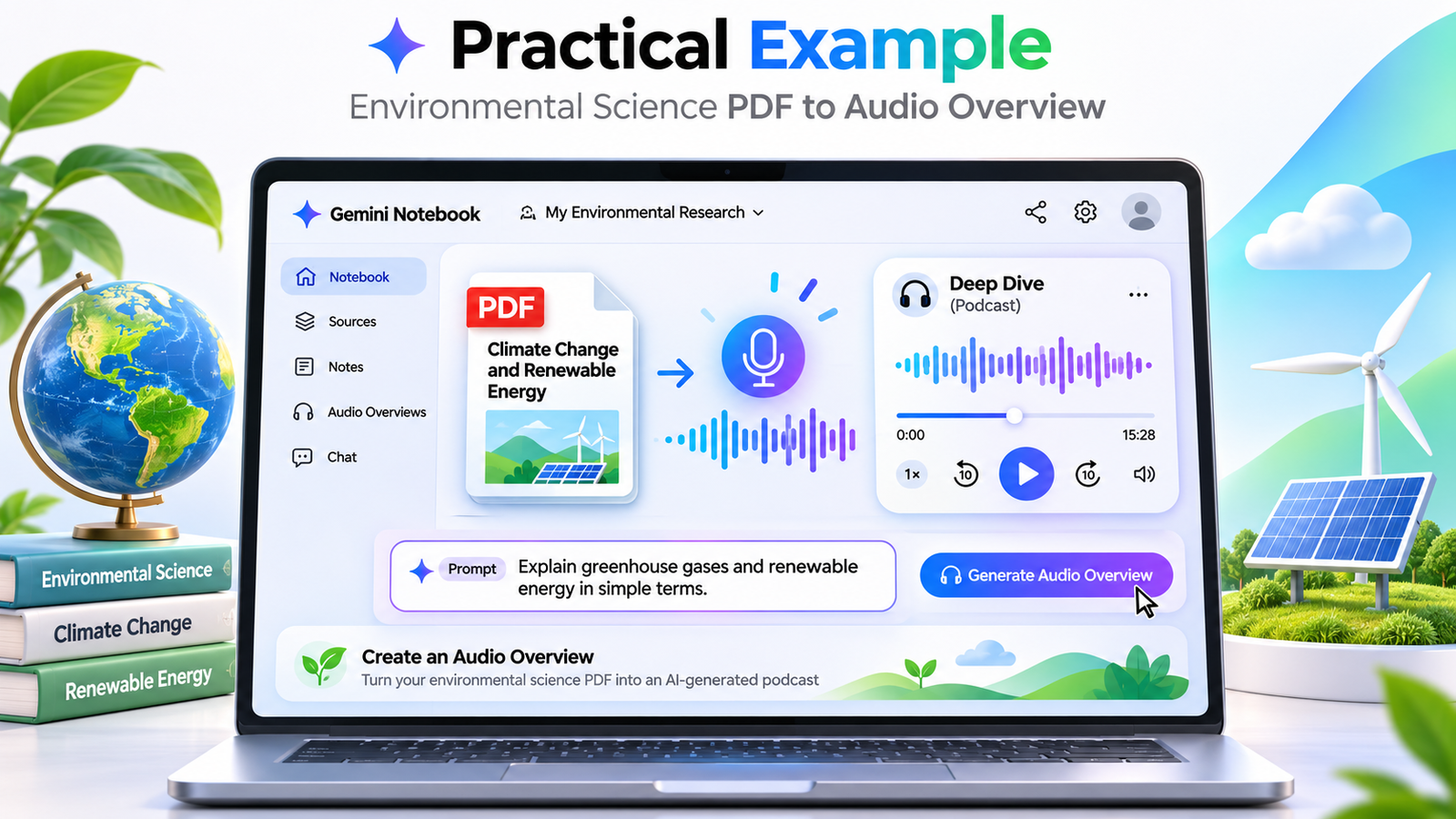
AI-generated illustration of an environmental science PDF converted into an educational podcast using Google NotebookLM.
Frequently Asked Questions
Can I use Gemini Notebook PDF to Podcast for free?
Google’s Standard plan lists up to 100 notebooks per user and 50 sources per notebook. Google’s published limits also describe Audio Overview usage allowances, but those allowances may change and may be subject to compute-based limits. Check Settings > Usage in your account for your current allowance.
Is Gemini Notebook the same as NotebookLM?
Google’s help pages refer to the product as Gemini Notebook, formerly NotebookLM. Product names and interfaces may change, so follow the labels shown in your account.
Can Gemini Notebook read an entire PDF word for word?
No. Audio Overview summarises and discusses key topics; it is not designed to provide word-for-word text-to-speech narration. For a full spoken reading, use a dedicated text-to-speech tool.
Can I create multiple Audio Overviews for the same PDF?
You can generate different overviews by choosing another format or changing your instructions, subject to the limits and options available in your account.
Can I use the generated audio commercially or on YouTube?
Check the rights to the source material and the applicable platform terms before publishing or using generated audio commercially. Uploading a document does not automatically give you permission to reproduce or distribute its contents. If the source is copyrighted, paywalled, or owned by someone else, get appropriate permission or legal advice before using the audio publicly or commercially.
Can Gemini Notebook open a password-protected PDF?
Google’s available help information does not clearly confirm whether password-protected PDFs are supported. If you’re authorised to use the document, try adding an accessible, unprotected copy. Do not remove protection unless you have the right to do so.
Is my uploaded data used to train AI models?
By default, Google says it doesn't use notebook content to directly train its foundational AI models. However, if you submit feedback, Google may collect related context—including prompts, uploaded sources, responses, and generated content—and have specially trained reviewers assess it. Google may use this information to improve Its products and machine-learning technologies.
For work or school Workspace accounts, Google says uploads, queries, and responses are not human-reviewed or used to train AI models, even when feedback is submitted. Check Google’s current privacy information for the terms that apply to your account, and avoid including sensitive information in feedback.
Final Thoughts
The Gemini Notebook PDF to Podcast workflow can help you review long reports, textbooks, and research papers in audio form. Keep your sources focused, tailor your instructions to your learning goals, and verify important facts against the original document. Before sharing or publishing generated audio, check your source rights, account settings, and Google's current product guidance.